Getting started
Itta Planner is free on the App Store for iPhone with iOS 18 or later and iPad with iPadOS 18 or later. You don't need an account. Open Itta Planner on the App Store.
- Choose what to share. On first launch, Itta asks whether to share usage analytics and crash reports. Both are off unless you agree, and you can change this later in Preferences.
- Take the short tour. The onboarding shows the main features with motion. You can skip it at any time.
- Allow calendar access. Choose Allow Full Access so Itta can show and edit your events. Without it, tasks, routines and the journal still work, but your calendars stay hidden.
- Start planning. The calendar opens with today selected. The tab bar at the bottom holds Calendar, Tasks, Routines, Journal and Occasions, and the + button adds an event.
Itta follows your device language. To use another language in Itta only, open ⋯ › Preferences › App Language.
Connect your calendars
Itta doesn't keep a separate copy of your calendar. It reads and edits the calendars already on your device through Apple's calendar system (EventKit), so anything you see in Apple's Calendar app appears in Itta, and changes you make in Itta appear everywhere that account syncs.
Supported accounts
- iCloud calendars, including shared calendars
- Google, Microsoft Exchange and Outlook, Yahoo and other CalDAV accounts
- Subscribed calendars, holidays and birthdays (read-only)
- Calendars stored only on the device
Add an account on iPhone or iPad
- Open Settings › Apps › Calendar › Calendar Accounts.
- Tap Add Account, choose the provider and sign in.
- Turn on Calendars for that account, then return to Itta.
For iCloud, open Settings › your name › iCloud › See All and turn on Calendars.
Choose which calendars to show
Tap All Calendars next to the month title to open the filter menu. Turn individual calendars on or off, show or hide events, tasks and occasions, or switch to a visibility preset such as Work or Family. Filter Settings… lets you save your own presets; there's no limit on how many. Which calendars you show stays on each device.
Default calendar for new events
Choose where new events are saved in ⋯ › Preferences › Calendars & Accounts. You can still pick another calendar for each event.
If calendars are missing
If events you made on another device don't appear, the account is usually signed out on this device, or its calendars are turned off. Itta helps you find out which.
- When this device has no calendars from an account such as iCloud or Google, the calendar shows a card: Missing events from your other devices? Tap How to Fix.
- You can open the same help at any time from the bottom of the calendar filter menu or from Preferences › Calendars & Accounts: If Calendars Are Missing.
On iPhone and iPad
- iCloud: Settings › your name › iCloud › See All › Calendars.
- Google, Outlook and others: Settings › Apps › Calendar › Calendar Accounts. Add the account and turn on Calendars.
- If the top of Settings shows Update Account Settings or asks for a password, sign in again first.
- Come back to Itta and tap Refresh. Some accounts take a few minutes to bring in events.
The help screen includes shortcuts to the Calendar app and to the Settings app. Itta never signs in to your accounts itself; accounts and passwords stay in your device's settings.
Calendar views
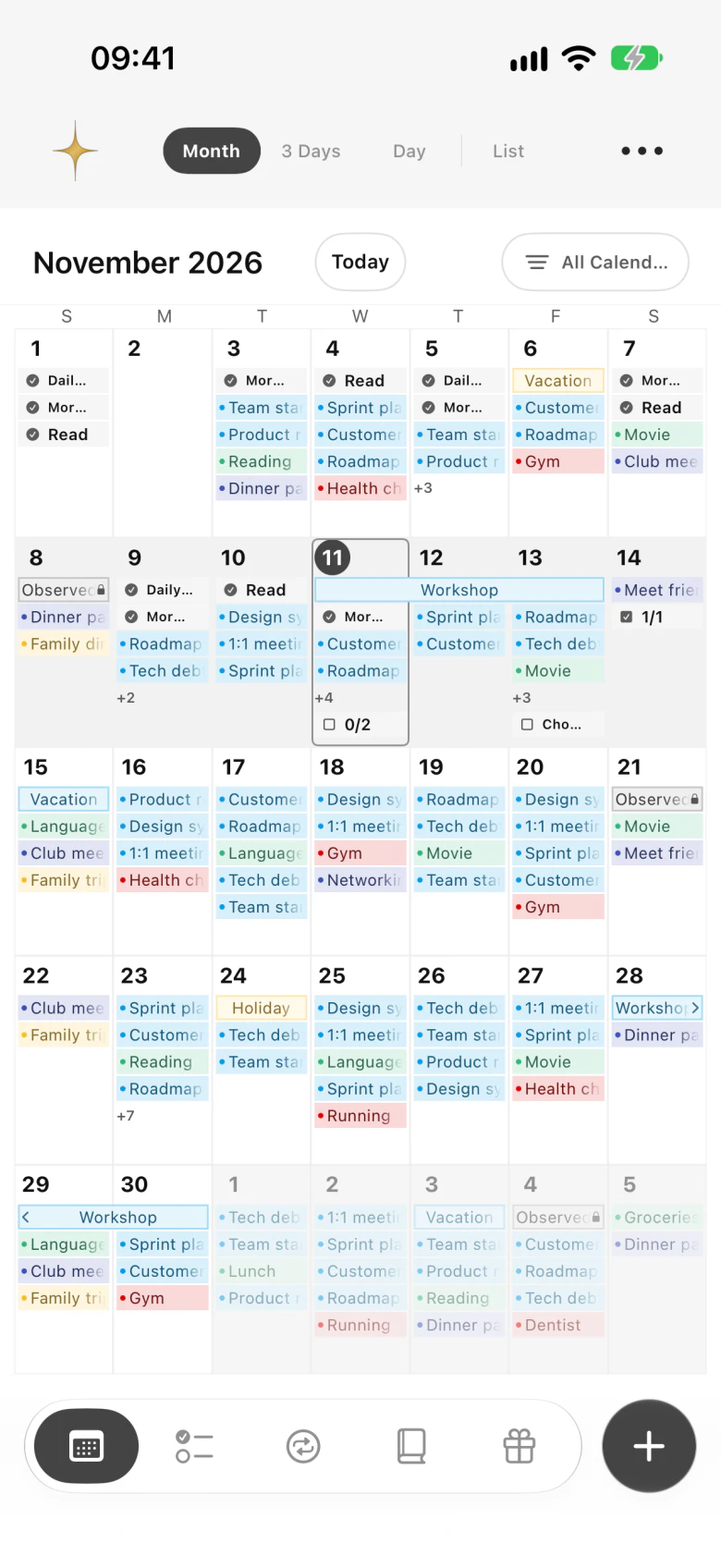
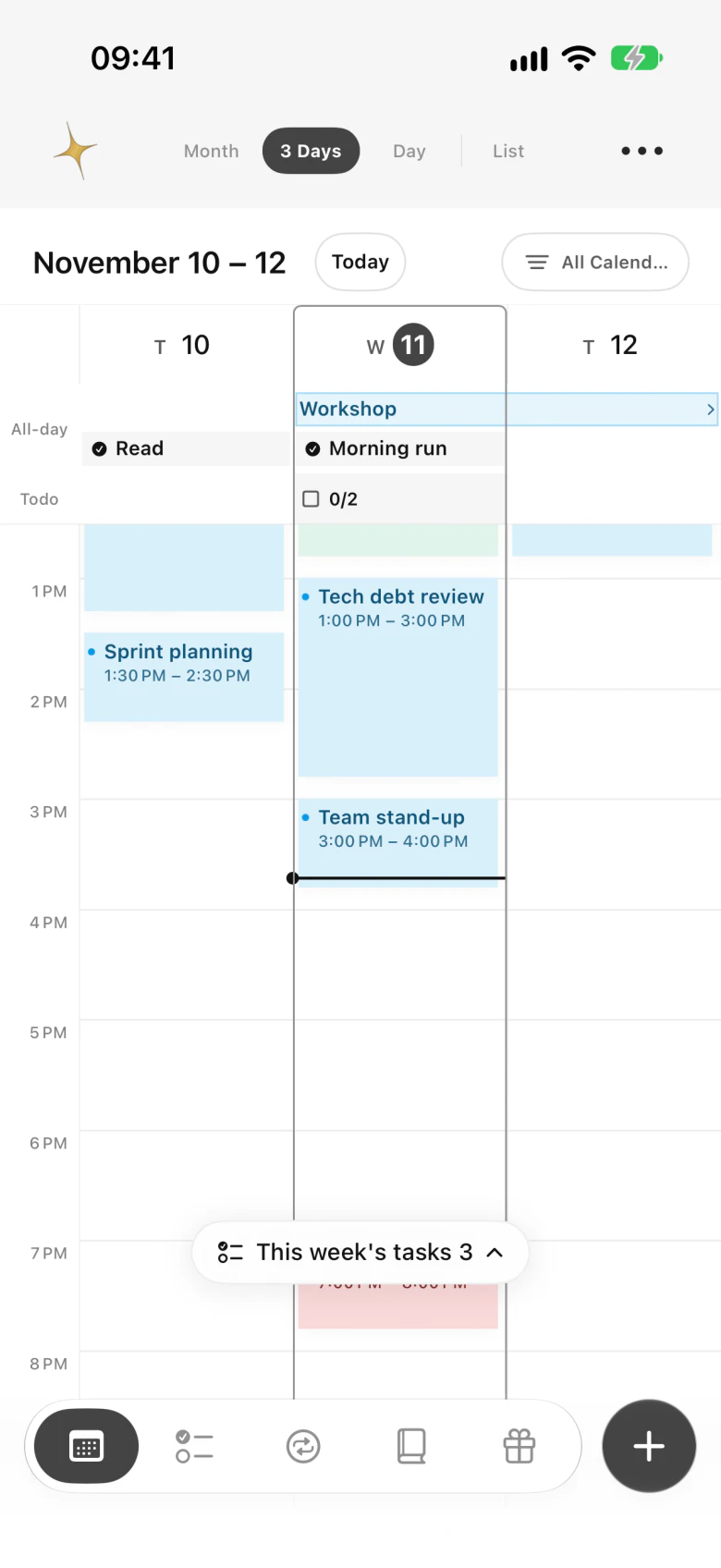
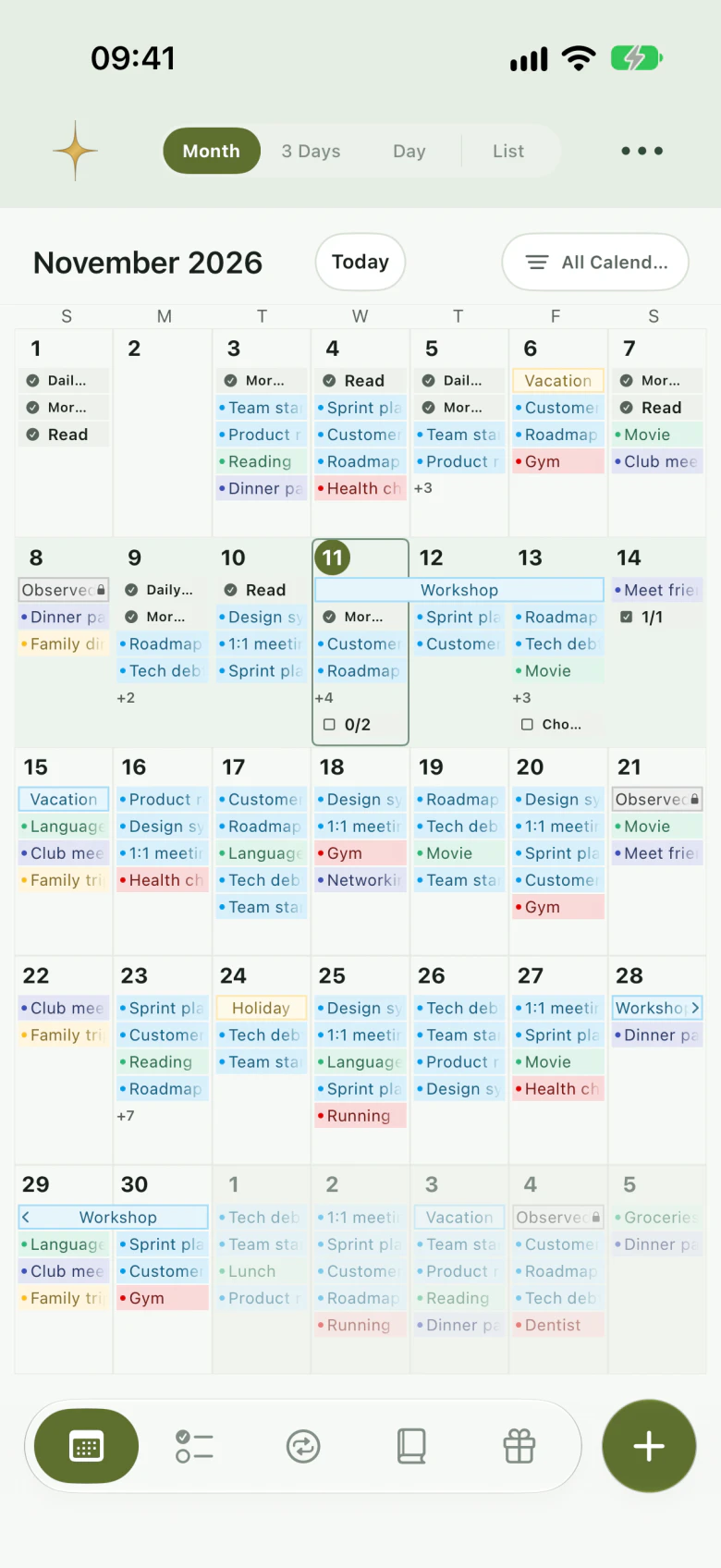
Switch views with Month, 3 Days, Day and List at the top, or pinch the calendar to move between them. Swipe sideways to change the month or day, and tap Today to come back.
Month
Tap a date to see that day's events, tasks and routines in the preview below the month. Swipe the preview up to enlarge it and down to close it. Multi-day and all-day events stretch across the days they cover.
3 Days and Day
- Touch and hold an empty time to add an event there.
- Touch and hold an event to edit it in place: drag it to another time or day, or drag its top or bottom edge to change the length.
- Open the task drawer to drag a task onto a free hour. It becomes an event.
- The line across the day shows the current time.
Today card
The Today card at the top shows today's date, how much of the year has passed, today's weather and what's next. It opens in its mini size; use the quick settings in the ⋯ menu to switch to the standard size, pin it, or choose what you see when the app opens.
Adding and editing events
Quick event
Tap + and type a sentence such as "Team meeting tomorrow 3pm" or "Dentist Friday 10am". Itta fills in the date, time and title, shows a preview, and saves when you tap Add Event. It understands dates and times written in English, Korean, Japanese, Chinese and Spanish. If you pick a day in the calendar first, + adds to that day unless you type a different date.
Event details
Tap an event to see and edit its details. You can set an all-day event, start and end times, the time zone (shown with its UTC offset), alerts, the calendar, location, URL and notes, and attach files. To remove an event, tap Delete Event at the bottom; for a repeating event, choose this event only or this and future events.
Repeating events and alerts
Events can repeat daily, weekly, monthly or yearly, with an end date. Alerts follow the defaults in Preferences, and you can change them for each event.
Read-only calendars, such as holidays and many shared or subscribed calendars, can't be edited. Itta shows a lock on those events.
World time and weather
Under an event's time, Itta shows the time in other cities, so you can plan calls across time zones. Two cities chosen for your region appear by default. Write "3pm PT" or "New York time 3pm" in a quick event to set the event in that city's time, and sending an event includes each city's time.
Turn world time on or off and choose where it appears in ⋯ › Preferences. With itta Plus, choose up to 10 cities, set their order and rename them.
Weather
The Today card shows today's weather, including the hourly forecast. Itta asks for your location only after you turn weather on. With itta Plus, see tomorrow's and this week's weather and weather icons on the calendar.
Tasks
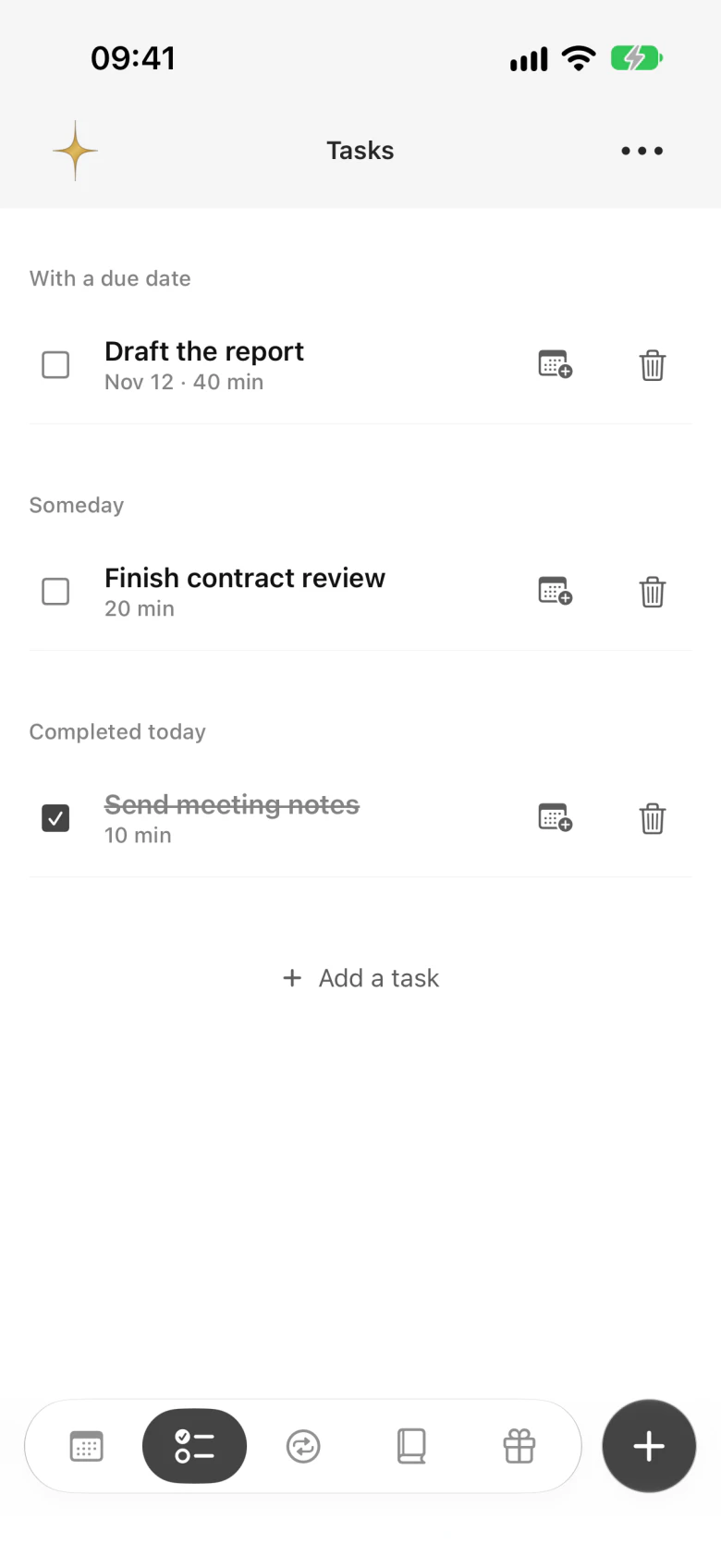
Write tasks the way you'd say them. "Submit report by Friday" sets the deadline, and dates and times in the sentence are filled in for you. Tasks are grouped into Today, Upcoming, With a due date, Someday, Past plans and Completed today.
- Touch and hold a task, then drag it to change the order. You can reorder groups too.
- Drop a task into another group and it takes that group's date: Today and Someday right away, Upcoming and With a due date after you pick a date.
- Swipe a task right to finish it on iPhone.
- In 3-day and day views, open the task drawer and drag a task onto a time to schedule it.
Tasks are unlimited on the free plan.
Routines
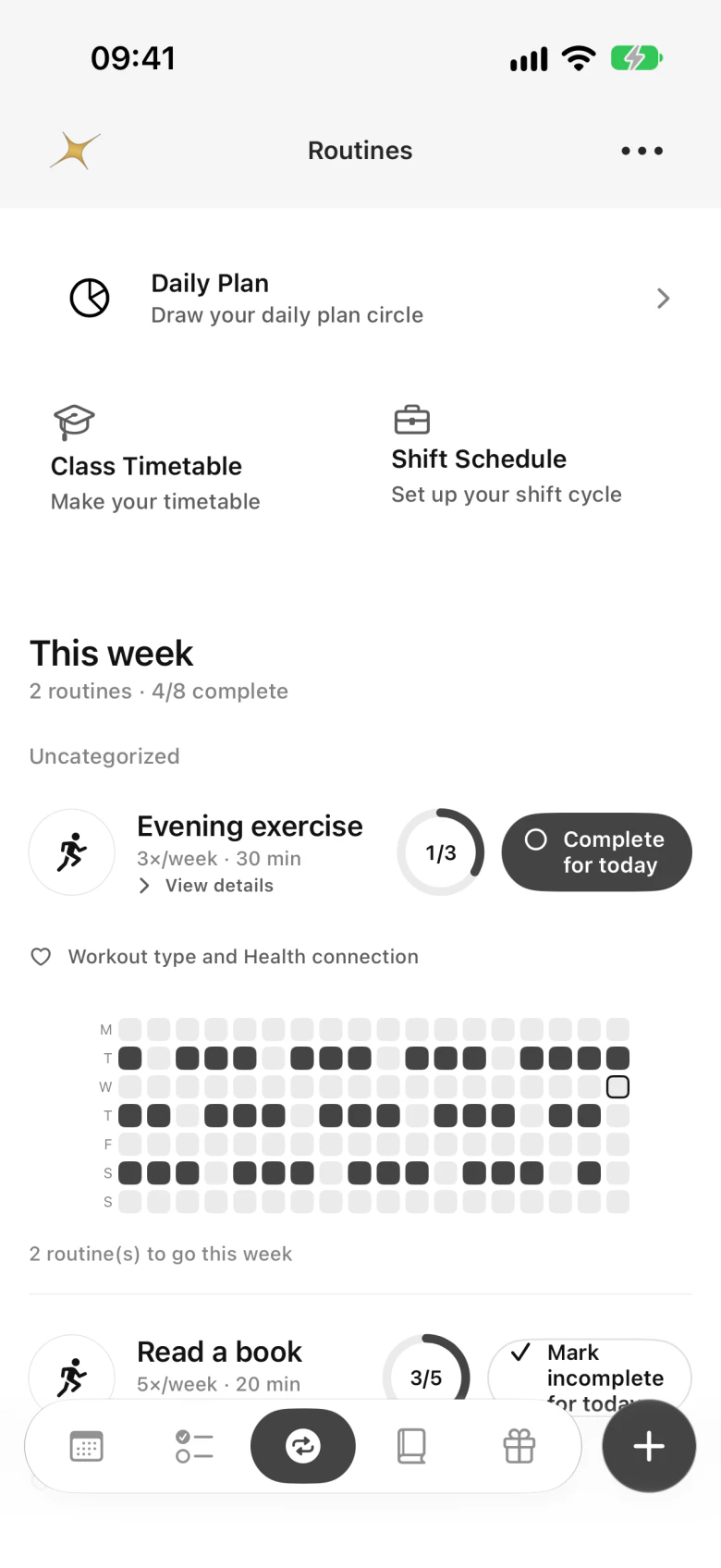
Routines are the habits you want to keep. Set each one for every day, specific weekdays or a number of times a week, then check it off when you do it. The routine screen shows this week's progress and a history that fills in over time.
- Check off a routine from the Routines tab, the Today panel on iPad, or the day preview in the calendar.
- Show routine records on the calendar with Show Routine Records in the filter menu.
- The free plan includes 3 routines. itta Plus removes the limit.
Journal and recaps
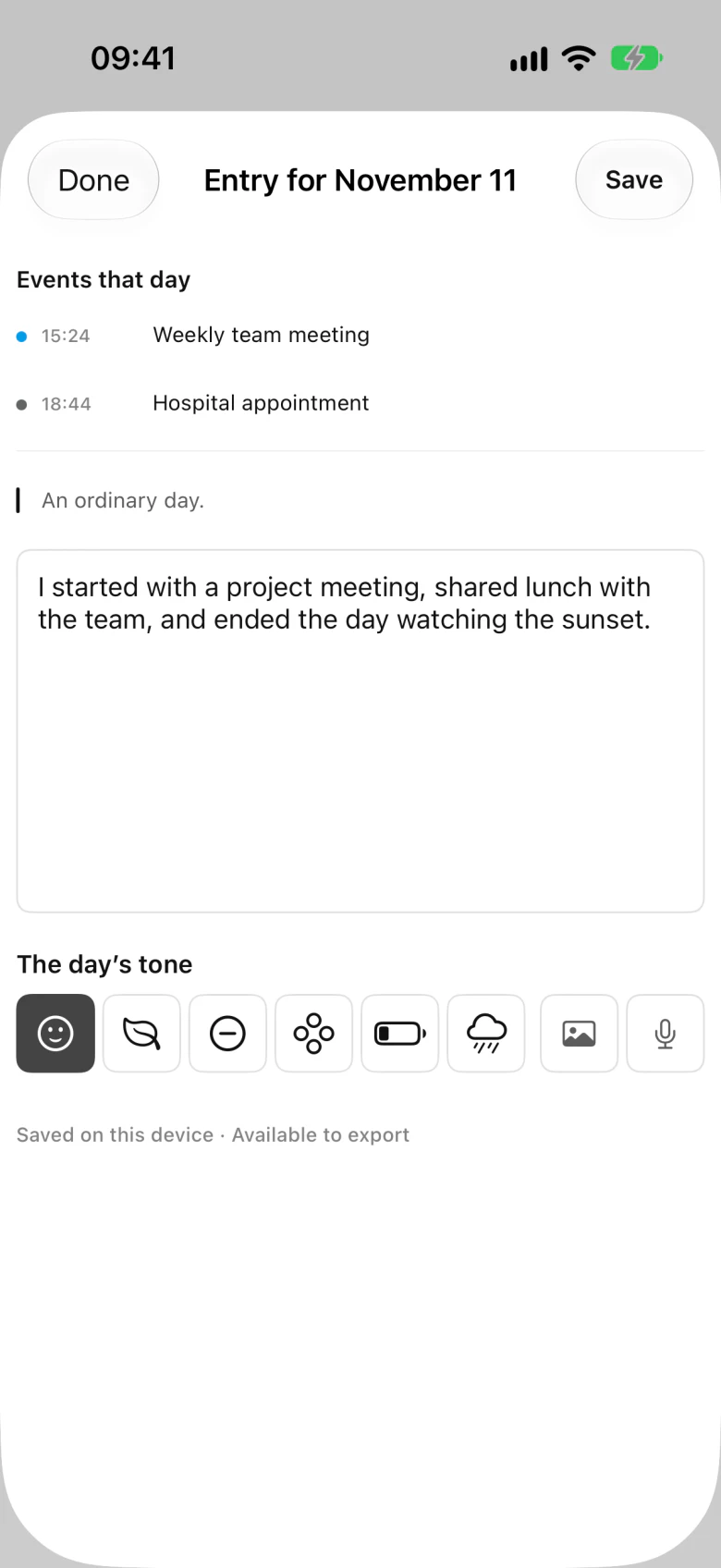
Each day has one entry. The day's events appear above it, so you remember what happened. Choose Free writing or Guided prompts, pick the day's tone, and add a photo. With itta Plus, add more photos and voice notes.
- Open today's entry from the Journal tab or with Record Today in the ⋯ menu.
- Days with an entry are marked on the journal calendar; mood dots can be turned off in Preferences.
- On iPad, write a handwriting page for the day with Apple Pencil.
Recaps
This week in itta shows your week's events, moods and routines day by day, even with one day of entries. Last week in itta arrives when a new week starts, and Your year in itta arrives on December 20. You can share recaps as a card. With itta Plus, see full weekly, monthly and yearly recaps and export them as PDF.
Occasions
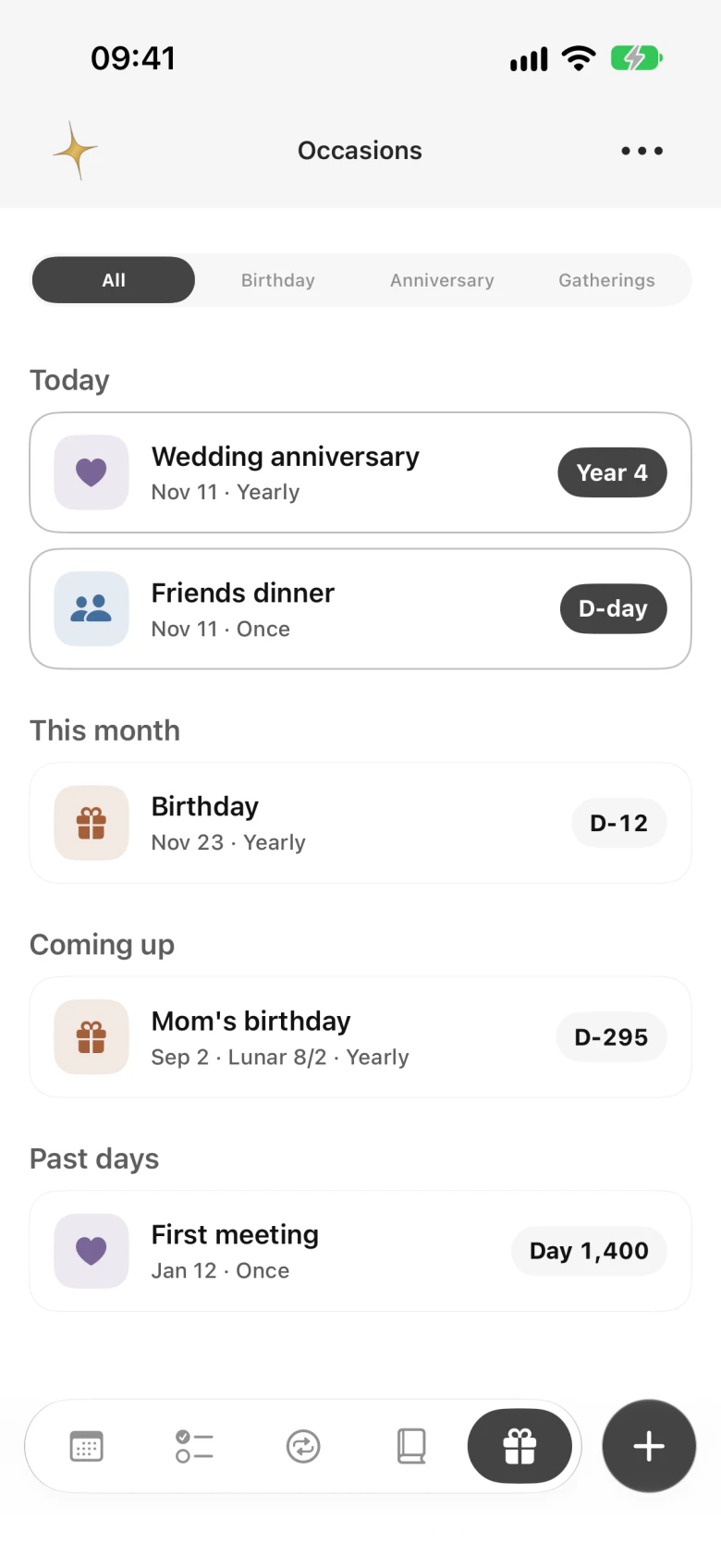
Keep birthdays, anniversaries and gatherings that repeat every year. Each occasion can follow the solar or the lunar calendar, shows a countdown, and can remind you ahead of time. Occasions also appear on the calendar.
The free plan includes 3 occasions, solar and lunar together. itta Plus removes the limit. If Plus ends, existing occasions stay and can be deleted.
Timetables, shifts and daily plans
Class timetable
Start from a preset for elementary, middle or high school, or university, then add your classes. The timetable shows which class is on right now.
Shift schedule
Choose a two- or three-shift pattern, or build your own order, and set the start date. Your shifts appear on the month view; tap a day to see that day's shift. With itta Plus, change the shift for a single day.
Daily plan
Draw a circular daily plan, like the ones made for school breaks, from presets such as vacation or exam days. Itta shows what's next and lets you stamp the slots you kept.
The free plan includes one of each, kept in the app. itta Plus adds more plans, saving them to your calendar, exception dates and widgets.
Widgets and Apple Watch
Touch and hold the Home Screen or Lock Screen, tap Edit › Add Widget and search for Itta. Free widgets: Next Event, This Week, Month Calendar and Quick Capture. With itta Plus, you get every widget, including the Today board, routine check, this month's history and one year ago today, and every widget style. Plus widgets can be added on the free plan; they show that they're part of Plus.
Choose whether widgets show event titles or only times in ⋯ › Preferences. On Apple Watch, see your current and next event from your iPhone.
iPad workspace and Apple Pencil
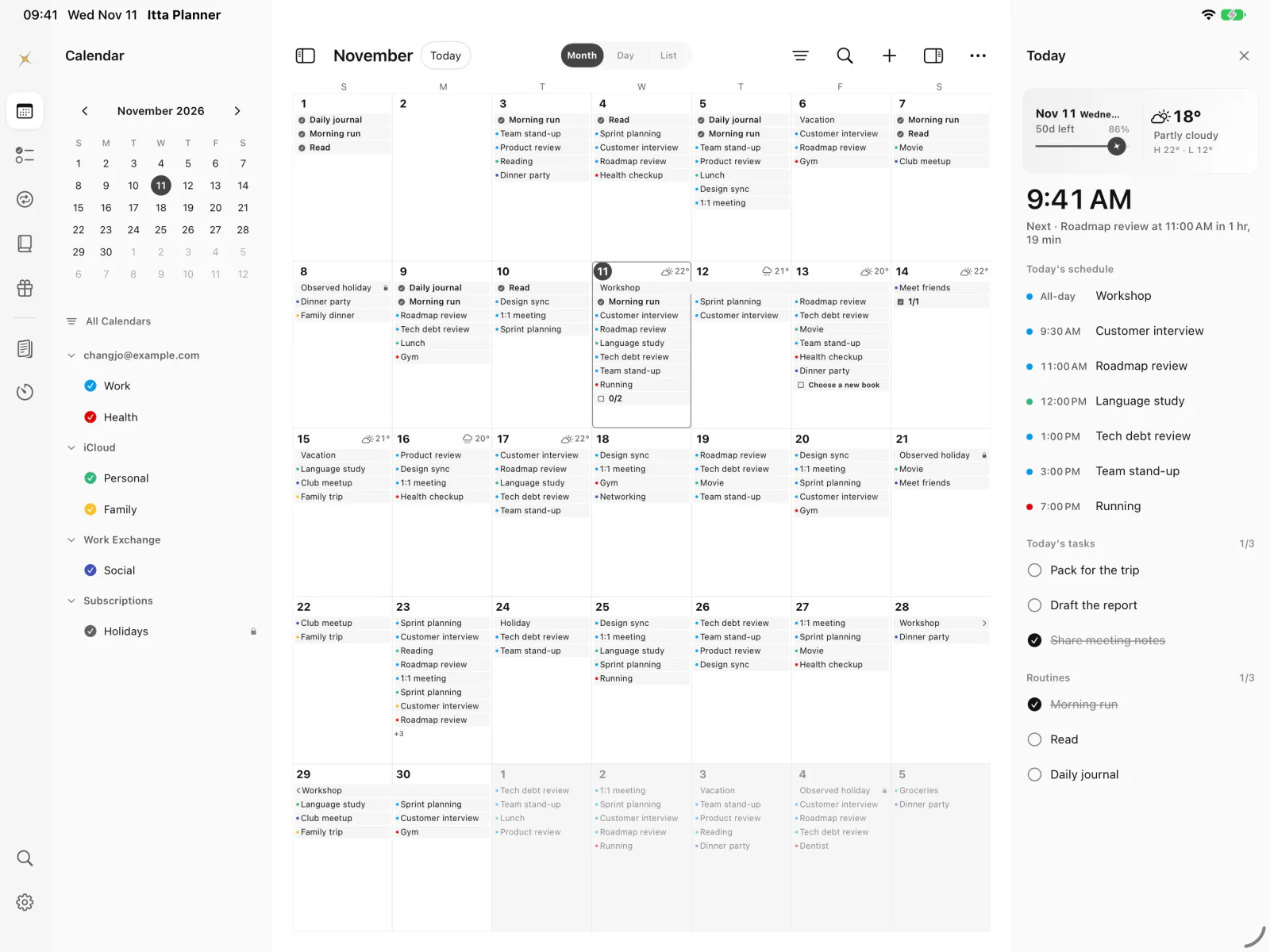
On iPad, choose a section from the icon rail on the left: Today, Calendar, Tasks, Routines, Journal, Occasions, Desk and Focus. Its list appears in the column beside it, the page in the middle, and the Today panel on the right shows your Today card, events, tasks and routines. The star in the rail shows or hides the Today panel. Every section keeps its title on the left and the search, add, Today panel and ⋯ buttons in the same places, and switching sections is instant.
Planner desk
Spread out the week, drag a task onto a time to make it an event, and keep a weekly note and this week's habits on the same screen. Free: this week and 5 drops a week. Plus: unlimited drops, 2-week and month spreads, and paper styles.
Focus board
Pick a category and start the timer. Your actual focus time lines up next to the events you planned. Free: the timer, 2 categories and today's log. Plus: unlimited categories, plan vs actual, and weekly and monthly stats.
Apple Pencil
- Draw down an empty time in the timeline to create an event for that time.
- Strike through a task to finish it.
- Write a handwriting page for the day and decorate it with stamps. Free: 2 new pages a week and emoji stamps. Plus: unlimited pages, pen colors and widths, illustrated stamps, photos and tape.
For your first 7 days, the desk, focus board and handwriting journal include the Plus features. Header colors on iPad are off by default; turn them on in ⋯ › Preferences › Appearance & Theme › Header colors.
iPhone Duo
Unfold iPhone Duo and Itta becomes a two-page planner. Tap a date in the month on the left to open that day on the right page, and tap an event to view and edit it there. Week view becomes a weekly planner across both pages, and the Journal tab lets you look back on today and get ready for tomorrow. Touch and hold an event or task on the right page and drop it on a date across the fold to move it. With itta Plus, stand the half-folded phone up as a desk board, and choose lined, grid or dot paper.
iCloud sync and backups
Use the same Apple Account with iCloud turned on, and your Itta data follows you to your other iPhone and iPad. Check the status in ⋯ › Preferences › iCloud Sync & Backup.
| Syncs through iCloud | Stays on each device |
|---|---|
| Tasks, routines, journal entries and photos, occasions, timetables, shifts and daily plans, date stamps, desk notes and handwriting pages, themes and display settings, header colors, world-time cities, the default view and the desk spread and paper | Which calendars are turned on, permissions (calendar, location, notifications, photos), whether weather is on, scheduled alerts, the app icon, and your analytics choice |
Calendar events don't go through Itta's iCloud data. They sync through their own accounts, so make sure the same accounts are added on each device.
Backups and restore
Itta backs up your data to your private iCloud automatically. The free plan keeps the 3 most recent backups; itta Plus keeps 30 and lets you restore from a date you choose. To restore, open iCloud Sync & Backup, choose a backup and tap Restore from this backup.
Moving to a new iPhone? Sign in with the same Apple Account, install Itta, open it and wait for iCloud Sync to finish before you erase the old phone.
Themes and display
Open ⋯ › Preferences › Appearance & Theme to choose light, dark or system appearance and a theme. Neutral and Warm Paper are free, along with one custom theme. With itta Plus, choose from 13 themes and the year-end collection; tap a Plus theme to try it on across the app before you decide.
You can also change how events look on the calendar (dots or blocks, block colors, all-day outlines and alignment), the shape of date cells, how today is marked, header colors, and the Today card's background. itta Plus adds alternate app icons, a photo behind the Today card, and the gold star at the top left.
itta Plus
itta Plus is optional. Choose a monthly or yearly subscription, or a one-time lifetime purchase, from ⋯ › itta Plus. Eligible users get a one-week free trial on subscriptions. Prices in your currency appear on the purchase screen.
- In some regions, such as Korea, Apple asks separately before a free trial turns paid. Itta tells you when that happens and reminds you three days before the trial ends.
- Restore a purchase on a new device with Restore Purchases on the itta Plus screen, using the same Apple Account.
- Manage or cancel a subscription in Settings › your name › Subscriptions. Deleting the app doesn't cancel it.
When Plus ends, nothing you created is deleted. Photos and files you attached stay viewable. Items beyond the free limits can be viewed and deleted; only new additions are limited.
Privacy
Itta works without an account. Your tasks, routines, journal and settings stay on your device and in your private iCloud. Event titles, notes, locations, attendees, calendar names and the text of your tasks, routines and journal are never sent as analytics. Usage analytics and crash reports only turn on if you agree, and you can turn them off in Preferences. Read the privacy policy for details.
Troubleshooting
Events from Google or Outlook arrive late
Itta asks your connected accounts for new events each time you open it. If something is still missing, open Apple's Calendar app once, then come back. See If calendars are missing.
My iPad shows different tasks or settings
Check that both devices use the same Apple Account and that iCloud Sync shows no error. Changes can take a little while to arrive.
Alerts don't appear
Allow notifications for Itta in Settings › Notifications, and check that Focus modes aren't silencing them.
A widget looks out of date
Open Itta once; widgets refresh when the app updates your day.
Still stuck?
Write to sunset@snapworkslab.com with your device, iOS version, app version and the steps that led to the problem. More on the support page.